
Butuh screenshot laptop? Yuk, coba 7 metode screenshot di PC dan laptop berikut yang paling mudah, cepat, dan tanpa aplikasi tambahan!
Pernahkah kamu sedang asyik bekerja di komputer lalu tiba-tiba perlu mengambil tangkapan layar (screenshot)? Baik untuk kebutuhan melengkapi tugas, menyimpan bukti transaksi penting, atau sekadar membagikan materi pekerjaan, mengetahui cara screenshot di pc secara cepat adalah keterampilan dasar yang sangat dibutuhkan.
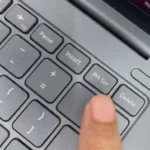
Many users think that capturing a computer screen requires installing special software. In reality, the Windows operating system already offers a variety of built‑in keyboard shortcuts that can be used instantly without extra effort.
So, what are the practical and hassle‑free ways to screenshot on a PC? Let’s explore the complete tutorial below!
Cara Screenshot di PC Menggunakan pintasan keyboard
Berikut adalah daftar kombinasi pintasan untuk menangkap layar laptop dan PC yang bisa kamu gunakan sesuai kebutuhan:
1. Windows + Shift + S Keyboard Shortcut
- Press the Windows + Shift + S keys together.
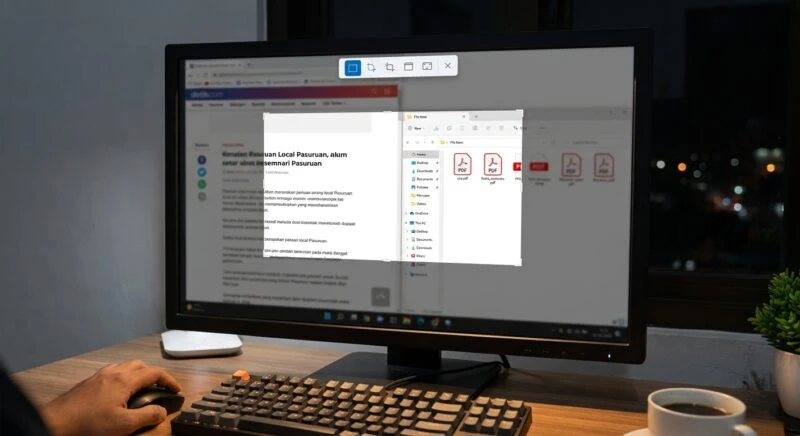
- The screen will dim automatically and the cursor will turn into a plus sign (+).
- Click and drag the cursor over the screen area you want to capture.
- The captured image will be saved to the clipboard. You can then paste it (Ctrl + V) into apps like Paint, Word, or WhatsApp Web.
2. Using the Built‑in Snipping Tool
- Open the Start menu, then search for and select the Snipping Tool app.
- Click the New button to start.
- Select the capture shape (Free‑form, Rectangular, Window, or Full‑screen).
- You can also use the Timer feature if you need a countdown delay before capturing the screen.
- Once the image is captured, you can annotate it or save it manually.
3. Windows + H Shortcut
- Press the Windows + H keys.
- The system’s built‑in share panel will appear on the side of the screen.
- Choose a target app (such as email or a social network) to instantly send the screenshot without first saving it to memory.
4. Windows + Volume Down Shortcut
- This shortcut usually works on touchscreen laptops or tablet PCs like Microsoft Surface.
- Press the physical Windows + Volume Down buttons at the same time.
- The screen will flash briefly, just like a smartphone screenshot.
- The image will be automatically saved in the Pictures > Screenshots folder.
5. Xbox Game Bar Feature
- For gamers, Windows offers a special tool to capture gameplay screens without interrupting the experience.
- Press Windows + G to open the Xbox Game Bar panel, then click the Camera icon.
- Alternatively, use the direct shortcut Windows + Alt + PrtSc.
- The image file will be automatically saved neatly in the Videos > Captures folder.
6. Alt + PrtSc Key Combination
- If you just need to capture a single active application window, this method is the answer.
- Open and focus on the application window you want to capture.
- Press Alt + PrtSc.
- The system will only record that active window into the clipboard. Paste it (Ctrl + V) into an image‑saving app.
7. Print Screen Key or Windows + PrtSc Shortcut
- Press PrtSc only
- Captures the entire screen and saves it to the clipboard (requires manual paste into Paint/Word).
- Press Windows + PrtSc
- Captures the entire screen and instantly saves the image file in the Pictures > Screenshots folder.
FAQ
Where can I find the folder that stores PC screenshots?
When using the Windows + PrtSc shortcut, the image is automatically saved in C:Users[YourUsername]PicturesScreenshots.
Why isn’t the PrtSc key working on my laptop?
On some laptop models (such as Asus, Lenovo, or HP), the PrtSc key is combined with another function. You need to press Fn + PrtSc or Fn + Windows + PrtSc.
How do I capture a full‑page scrolling screenshot on a PC?
To capture a web page from top to bottom, you can use the browser’s built‑in feature (such as Microsoft Edge’s Capture full page) or a Chrome extension like GoFullPage.
It turns out it’s really simple and varied, right? By mastering the PC screenshot methods above, you can now quickly capture your computer screen without the hassle of installing third‑party apps.
Want to learn computer shortcuts, software productivity tips, and other helpful tech tutorials? Let’s not forget to keep your knowledge up‑to‑date only on TheCuy Tekno!


terimakasih sudah mengunjungi thecuy. 🙂

Penulis Berpengalaman 5 tahun.