Sep 11, 2026
/

By Faradilla A.
/

10 minutes read

            </div>

                            <p class="wp-block-paragraph">Emails that fail to be delivered are often the result of various factors, including incorrect SMTP configurations, an interrupted internet connection, blocked ports, DNS or domain complications, login failures, reached sending limits, or content that looks like spam.</p><p class="wp-block-paragraph">The approach to fixing it depends on where you are sending the email from. Emails stuck in webmail, applications like Outlook, website contact forms, or marketing platforms may fail for different reasons. Fortunately, most of these issues can be diagnosed by you without needing special technical knowledge.</p><p class="wp-block-paragraph">First, try simple steps such as confirming the recipient's address and checking if the email is still stuck in the Outbox. If that doesn't work, move on to examining SMTP settings, ports, account status, DNS records, email client configurations, or how a website sends email. Other causes often involve sending limits, error codes, or content that looks like spam.</p><h2 class="wp-block-heading" id="h-kenapa-email-tidak-terkirim">Why aren't emails being sent</h2><p class="wp-block-paragraph">Typically, an email fails to go out because something is blocking it. This situation differs from emails that have been sent but never arrive at their destination. At first glance, they might seem similar, but they require different solutions:</p><ul class="wp-block-list">
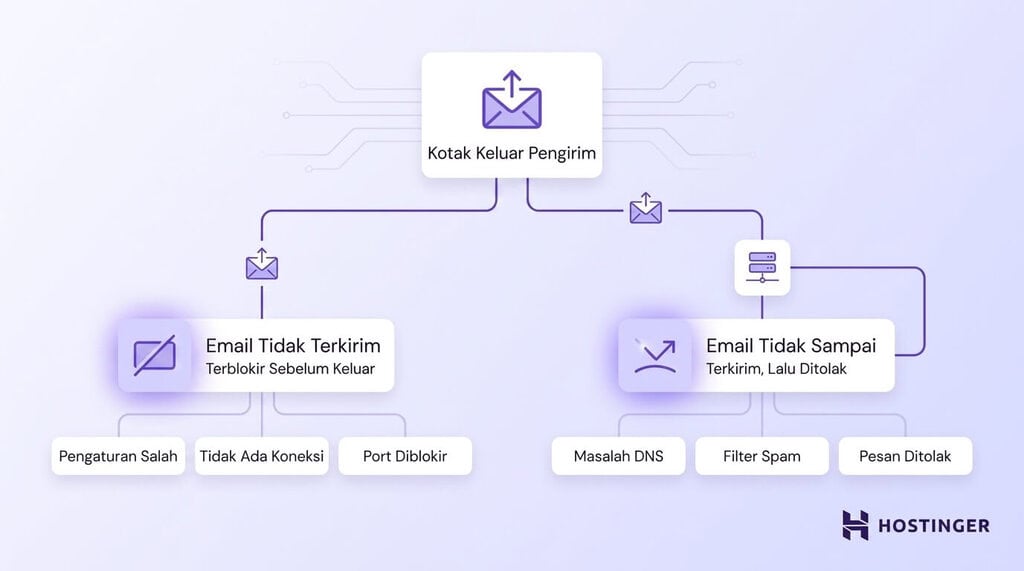
Most email sending issues are caused by one of the following:
- Recipient address format is wrong, e.g., missing “@” sign.
- No internet connection.
- Email is stuck in the Outbox.
- Incorrect SMTP configuration.
- Incorrect email password.
- Sending port is blocked.
- Email service is suspended or inactive.
- Sending limit has been reached.
Conversely, emails that have been sent but do not arrive at their destination are typically due to other factors. For example, incomplete DNS records, a poor sender reputation, or content that looks like spam. Such issues can cause emails to bounce or be filtered after they’ve been sent.
Initial solutions for fixing emails that won’t send
Before tweaking DNS or SMTP settings, perform a few basic checks. These steps take only a few minutes and can help you identify the common cause first before attempting more technical fixes.
Follow these steps in order:
- Check your internet connection. Try refreshing the website. If it still won’t load, reconnect to Wi-Fi or reset using airplane mode on your phone.
- Confirm that the recipient’s address is correct. An incorrect format, such as missing the “@” sign, can prevent an email from being sent. By contrast, a simple typo usually lets the email go out but then leads to a bounce.
- Inspect the Outbox and Drafts. If an email is still stuck there, it hasn’t actually been sent yet.
- Try sending a plain text email without attachments to verify that email sending works normally.
- If the email is too large, reduce the attachment size. The limit is usually between 10–25 MB, depending on the provider.
- Check if you recently changed your email password. Update the stored login credentials in the app if you did.
- Try sending the same email via webmail in a browser.
- Check if your email provider is experiencing downtime or scheduled maintenance.
Testing via webmail can provide the clearest clue about where the problem originates. If an email can be sent through webmail but fails in Outlook, Apple Mail, or other apps, the issue likely lies with the app’s settings, not your email account. Therefore, check those settings first.
If all these steps don’t resolve the issue, continue to examine settings, account status, and how email is being dispatched.
1. Review SMTP settings
SMTP is the system that applications use to forward outgoing emails to a server. Incorrect SMTP configuration is one of the most common reasons why email clients can’t send messages.
To resolve this, open the outgoing server or email server settings in your application and match the following information with that provided by your email provider:
- SMTP server, the outgoing email host, e.g.,
smtp.hostinger.com. - SMTP port, usually 587.
- Encryption method, either SSL/TLS or STARTTLS. Use the method specified by the provider for the port in use.
- Username, usually the full email address. Some providers may give a special SMTP username.
- Password, the same as used for logging into webmail.
- Authentication, which must be enabled.
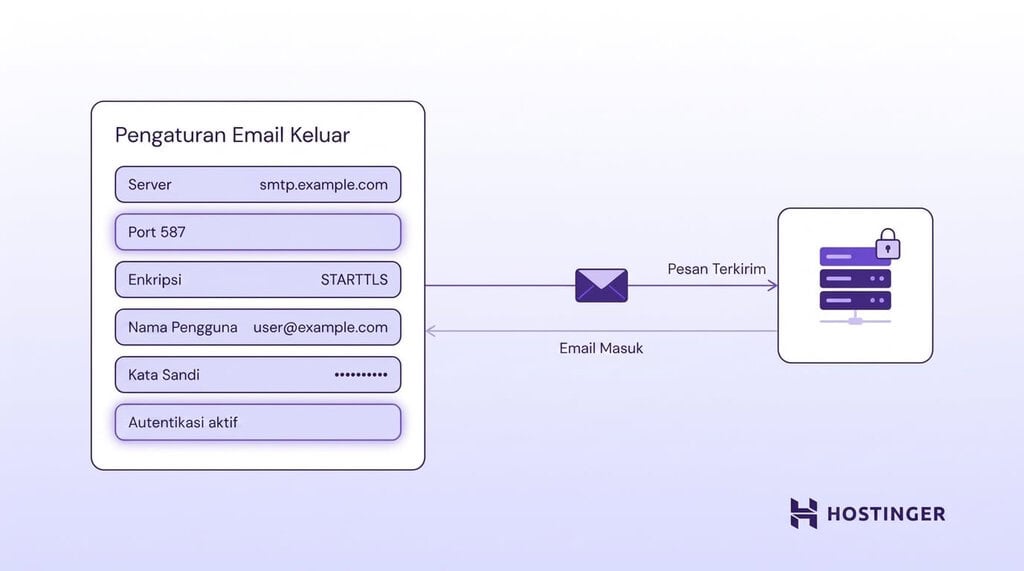
When checking these settings, avoid mixing up IMAP or POP with SMTP. IMAP and POP handle incoming email, while SMTP handles outgoing email. Therefore, if your inbox works normally but you can’t send emails, the problem likely lies with SMTP settings.
If you are using Hostinger Email, you can view the SMTP server details, port, and encryption method directly in hPanel or the Hostinger support article. Then, enter this information into the application as specified.
Hostinger supports port 465 with SSL and port 587 with STARTTLS. By default, Hostinger uses port 465, so try that first. If an encryption error occurs, try port 587. If all settings are correct but email still won’t send, the port being used may be blocked.
Choosing the correct SMTP port is just as important as entering the right server name. An incorrect port can cause delivery to fail without any clear indication.
2. Check if SMTP port is blocked
The SMTP port is the pathway used to send emails. If this port is blocked, emails may fail to be sent even if all other settings are correct. Networks, firewalls, or internet providers sometimes close certain ports to reduce spam.
As a result, you may still be able to log in and the server in use is correct, but emails never get sent.
Here are the commonly used ports:
- Port 587 is the modern standard for secure email transmission and is usually the first choice for most providers.
- Port 465 is a secure option that encrypts the connection from the start (implicit TLS) and remains widely supported.
- Port 25 is an old transmission port that is now blocked by most internet and hosting providers due to frequent misuse for spam.
If the currently used port doesn’t work, go to the outgoing server settings in the email application and try 587 with TLS encryption. This port is the modern standard used by many providers, unless your provider recommends port 465, as Hostinger does.
Still unsuccessful? Check the firewall. Security software on your computer may block a port without showing a clear notification.
To check if a port is open, you can use a telnet command, a free online port checker service, or follow tutorials on how to verify if port 587 is open.
If the port is blocked by a network or hosting provider, the issue is usually resolved by changing the port. Many providers do not open certain ports, such as port 25.
3. Review email and hosting account status
Emails cannot be sent if the email account, hosting package, domain, or email service you are using is inactive. The settings may be correct, but emails still cannot be sent if the service is not active.
This often goes unnoticed because errors appear in the application, while the source of the problem lies with the account. If you are using Hostinger’s email hosting package, you can check its status via hPanel.
Ensure the following:
- Hosting package or email hosting is still active and has been paid for.
- Domain is still registered and has not expired.
- Email account has been created and configured.
- Email service has been activated for your account.
- Account is not restricted and you have not reached a temporary sending limit.
If you have just registered a domain or changed DNS settings, wait until the changes are applied across the internet. This process is called propagation and can take a few hours. Therefore, a new configuration may not be immediately usable for sending emails.
If everything appears active but your Hostinger email still cannot send emails, proceed to examine your account details.
4. Check domain DNS record
DNS records inform the email server where messages should be directed and also help the receiving server verify that the email truly originates from a legitimate sender.
DNS, or the Domain Name System, is the internet’s directory system that connects a domain to its server. For email, these records can be seen as both address pointers and domain identifiers.
If DNS records are missing or misconfigured, receiving servers may have difficulty determining whether your email is trustworthy.
There are four types of records that play a role in email management for a domain:
- MX record directs incoming email to the correct server. An incorrect value can make inbound email nonfunctional and typically indicates that DNS for email has not been fully configured.
- SPF informs receiving servers which email servers are authorized to send messages on behalf of your domain.
- DKIM adds a digital signature to prove that the message content has not been altered during transmission.
- DMARC determines what action receiving servers should take if SPF or DKIM checks fail.
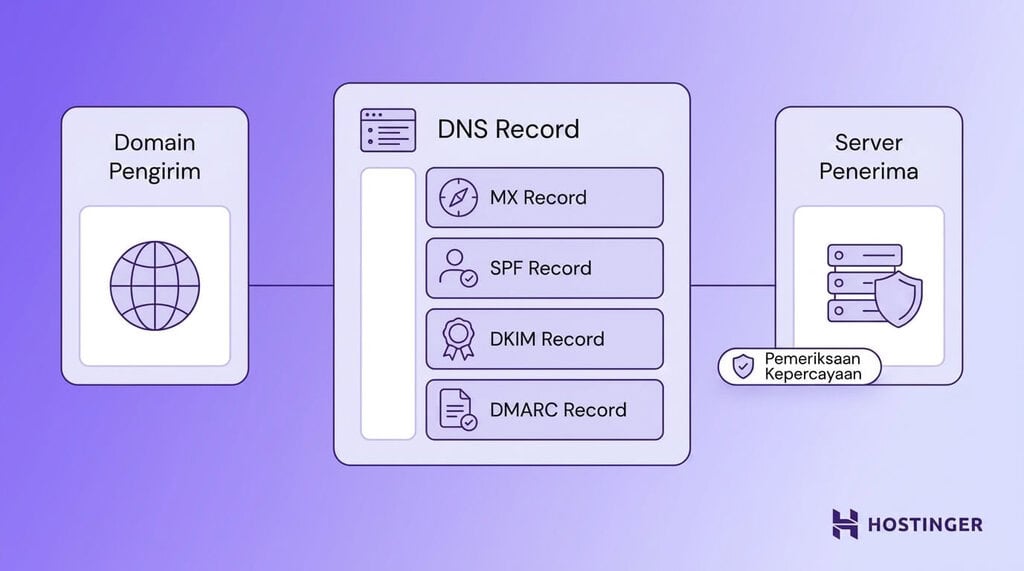
DNS issues more often affect delivery and inbox placement than the sending process itself. Unconfigured SPF or DKIM may not prevent emails from being sent, but can cause messages to bounce, fail security checks, or go directly to the recipient’s spam folder. Therefore, an email may appear to have been sent but is never seen in the inbox.
A correct email DNS configuration ensures that the necessary records are present. Meanwhile, SPF, DKIM, and DMARC help verify that the email sent is legitimate. Check whether all three are available for your domain and add any missing records.
5. Resolve issues with email applications
If webmail can be used to send email but email applications cannot, the problem likely lies with the application’s configuration. This applies to Outlook, Apple Mail, Gmail apps, Thunderbird, and mobile email apps.
Each application stores its own SMTP configuration. Therefore, a single incorrect setting can cause email sending to fail even though webmail works normally.
Here are the steps you can try, ordered from the most common:
- Remove the email account from the application and then add it again to reset the connection.
- Re-enter the SMTP password, especially if you have recently changed it.
- Enable SMTP authentication in the account settings.
- Ensure that the outgoing email server matches the one provided by the service provider.
- Update the application to the latest version.
- Delete emails that are stuck in the Outbox, then try sending them again.
- If using Outlook, make sure the application is not in offline mode, as this mode stops email sending.
Deleting and then adding the account again is usually most effective because it forces the application to reset the connection from the start. If the problem persists, follow the official setup guide for the application being used. Email settings may be located in different places in different applications.
6. Check website or WordPress email settings
Website email issues differ from those encountered with webmail or applications. Website emails are usually sent automatically, such as contact form replies, WordPress password reset emails, WooCommerce order notifications, and membership or booking confirmations.
If these emails do not arrive, examine how the website sends emails, not your inbox.
In WordPress, the cause is often related to the default sending method. WordPress sends emails using the wp_mail() function, which by default relies on the server’s built-in PHP mail function to send messages. Unfortunately, this method is unreliable.
In reality, emails are often sent but, because they are not properly authenticated, receiving servers may reject them or place them in spam. As a result, the website reports that the email has been sent, even though the message never reaches the inbox.
The solution is to use SMTP so that the website sends email through an authenticated connection. Follow these steps:
- Send a test email from WordPress to verify whether the issue occurs during the sending process.
- Check the recipient addresses stored in the contact form settings.
- Install and configure a WordPress SMTP plugin, such as WP Mail SMTP, to replace the default PHP mail function.
- Connect the plugin to a sending service, such as a Hostinger Email account or a provider like Brevo, so that emails are sent via an authenticated server.
- Ensure that SPF and DKIM are properly configured so that emails pass authentication checks.
If these steps still do not work, learn more about why WordPress is not sending emails to handle more complex cases, such as plugin conflicts or incorrect email server configuration.
If you are creating a form or application yourself without a plugin, you can send email using PHPMailer so that emails sent through scripts can be authenticated.
7. Review sending limits and account restrictions
Email providers limit the number of messages that can be sent each hour or each day. These limits are set to prevent spam and maintain the reputation of the shared email server.
Once the limit is reached, you cannot send emails until the limit is reset. The maximum number and reset time vary by provider.
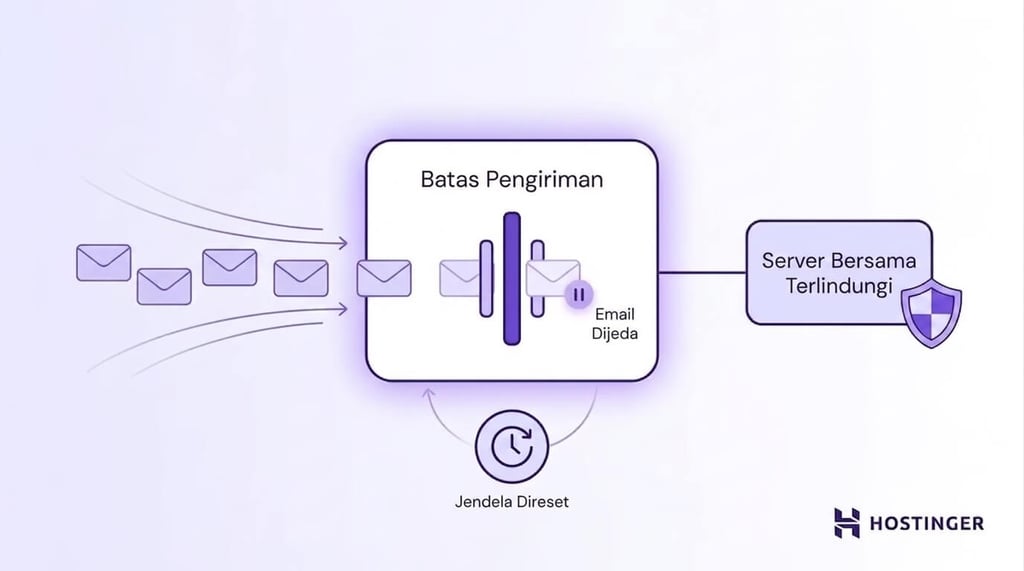
You are most likely to have reached the sending limit, not experiencing a configuration problem, if the following characteristics apply:
- You were previously able to send emails on the same day, but sending suddenly stopped.
- Only mass emails or repetitive messages fail, while individual emails can still be sent.
- Error messages refer to rate limit, quota, throttling, or suspicious activity.
If these characteristics match your problem, wait a few moments before trying again and reduce the number of emails sent at once.
To prevent this problem from recurring, do not use a regular business email account for mass sending. Use an email marketing platform for newsletters and campaigns. These platforms are designed to handle large volumes of email without causing the primary email account to reach its sending limit.
If the account is truly restricted, not just at the sending quota, contact your email provider to resolve the issue.
8. Review bounce messages and error codes
Bounce messages and error codes usually directly indicate the problem that arises, helping you find a quick solution. When sending fails, servers typically provide a brief message or specific code.
Match the message you receive with the following table:
| Error type | Usually means | What to check |
|---|---|---|
| Authentication failed | Incorrect username, password, or SMTP login | SMTP credentials |
| Connection timed out | Issues with server, port, firewall, or network on one side | Port, firewall, network, and receiving server |
| Relay access denied | SMTP authentication is inactive or sender address mismatch | SMTP authentication and From address |
| Message rejected | Receiving server blocks the email | Email content, reputation, and DNS |
| Daily limit exceeded | Sending quota has been reached | Provider’s sending limit |
Gmail and other major email providers offer documentation for SMTP error codes. If you receive a specific code, search for it along with your service provider’s name. After that, you can understand the meaning of the error and the steps needed to resolve it.
9. Review email content and sender reputation
Email content and sender reputation can cause a message to be blocked even if sending was successful. An email may leave your account but then be stopped by spam filters on the receiving end.
Thus, the problem is no longer about sending settings, but about how trustworthy your email is for the receiving system. This is especially critical for email marketing and mass campaigns.
Some of the following can make an email look suspicious to spam filters:
- Subject lines that resemble spam, such as those entirely in capital letters or promising money.
- Too many links in one email.
- Shortened URLs that hide the destination.
- Attachments that are too large.
- Lack of an unsubscribe link in marketing emails.
- Poor-quality recipient list containing outdated or fake addresses.
- Sending from a brand-new domain without “warming up”. New domains do not have a strong reputation, so sending a few dozen emails can trigger filters if the volume is not gradually increased.
- Email authentication not configured, e.g., SPF or DKIM not set up.
Fix the issues that apply to your situation to make emails easier to pass filters. For most senders, the fastest solution is to reduce the number of links, provide an unsubscribe option, and enable email authentication.
After the primary issue is resolved, these steps also help maintain deliverability and sender reputation.
10. Contact your email service provider
If all the above solutions have been tried but emails still cannot be sent, try contacting your email service provider. Some issues occur on the server side and cannot be fixed by you. If the settings, ports, and DNS are correct, the support team can check the cause on the server side.
Contact your provider if:
- Webmail also cannot send emails, indicating the problem is not just with the application or device.
- SMTP credentials are correct, but login is still rejected.
- Port is open but connection keeps failing.
- Account appears to be restricted or suspended.
- Error messages indicate server-side blocking.
- DNS records are correct, but email still cannot be sent after propagation is complete.
Before contacting your provider, prepare the following information so that the problem can be handled more quickly:
- Problematic email address.
- Complete error or bounce messages.
- Email application or client used.
- SMTP settings entered.
- Time when the problem started.
- Whether you can send emails via webmail.
Providing this information from the start can reduce follow-up questions and speed up problem resolution.
How to prevent emails from failing to send again
Most email sending issues can be prevented by maintaining configuration, authentication, and sending volume.
Problems usually stem from changed settings, unconfigured records, or unknown sending limits. By monitoring these three factors, the likelihood of emails failing to send will be significantly reduced.
Here are some habits you can adopt:
- Keep a record of SMTP settings so you can quickly restore them after any changes.
- Use a strong password and update stored app passwords each time you change it.
- Configure SPF, DKIM, and DMARC correctly so that emails can always be authenticated.
- Do not send mass emails from a regular email account. Use an email marketing platform for campaigns.
- Monitor bounce rate. If the number starts to increase, there may be an issue that needs to be checked.
- Update email applications regularly to get bug fixes that could cause connection issues.
- Use SMTP to send emails from websites and WordPress, not the default PHP method.
Prioritize SPF, DKIM, and DMARC because they are most influential in determining email delivery success. After configuring these records correctly, emails will more easily pass security checks and have a better chance of reaching the recipient’s inbox. After that, gradually implement other steps to keep email sending smooth going forward.

All tutorial content on this website has undergone thorough review in accordance
                with Hostinger's standards and editorial commitments.
        </strong>
    </p>

            Add Hostinger as a preferred source on Google

            </div>
</div>
<div class="description mt-15 mt-30-md" readability="14.686684073107">
    <p class="text-center text-sm-start">
        Faradilla, commonly known as Ninda, has over 10 years of experience as a linguist and 5 years as a Content Marketing Specialist at Hostinger. She enjoys keeping up with technology trends, digital marketing, and language learning. Through these Hostinger tutorials, Ninda aims to share knowledge and help readers solve the problems they encounter. Get to know Ninda better on LinkedIn.
    </p>
</div>

</div>
Read other tutorials at Seputar Tutorial Page thanks for visiting thecuy. 🙂

Saya adalah jurnalis di thecuy.com yang fokus menghadirkan berita terkini, analisis mendalam, dan informasi terpercaya seputar perkembangan dunia finansial, bisnis, teknologi, dan isu-isu terkini yang relevan bagi pembaca Indonesia.
Sebagai jurnalis, saya berkomitmen untuk:
Menyajikan berita yang akurasi dan faktanya terverifikasi.
Menulis dengan bahasa yang mudah dipahami, namun tetap menjaga integritas jurnalistik.
Menghadirkan laporan mendalam yang memberi perspektif baru bagi pembaca.
Di thecuy.com, saya tidak hanya melaporkan berita, tetapi juga berupaya menganalisis tren agar pembaca dapat memahami konteks di balik setiap peristiwa.
📌 Bidang Liputan Utama:
Berita Terbaru & ekonomi, keuangan.
Perkembangan teknologi dan inovasi digital.
Tren bisnis dan investasi.
Misi saya adalah membantu pembaca mendapatkan informasi yang cepat, akurat, dan dapat dipercaya, sehingga mereka bisa membuat keputusan yang lebih cerdas dalam kehidupan sehari-hari maupun dunia usaha.
📞 Kontak
Untuk kerja sama media atau wawancara, silakan hubungi melalui halaman Kontak thecuy.com atau email langsung ke [email protected].