
Google Meet is one of the most widely used video conferencing platforms, allowing users to connect online for everything from small team meetings to large‑scale seminars.
To ensure smooth and professional virtual meetings, it’s crucial to follow rules such as updating your profile name. Knowing how to change your Google Meet name to match the event’s format helps organizers identify you quickly and makes a good impression.

Often, participants in online seminars or office meetings must use a full name along with their division or institution. Unfortunately, many users are unaware that changing a Google Meet account name cannot be done directly within the Meet app during a meeting; it must be adjusted via the Google Account Settings instead.
So, how can you permanently change your name on Google Meet across different devices? Let’s dive into the detailed step‑by‑step guide below!
How to Change Your Name on Google Meet
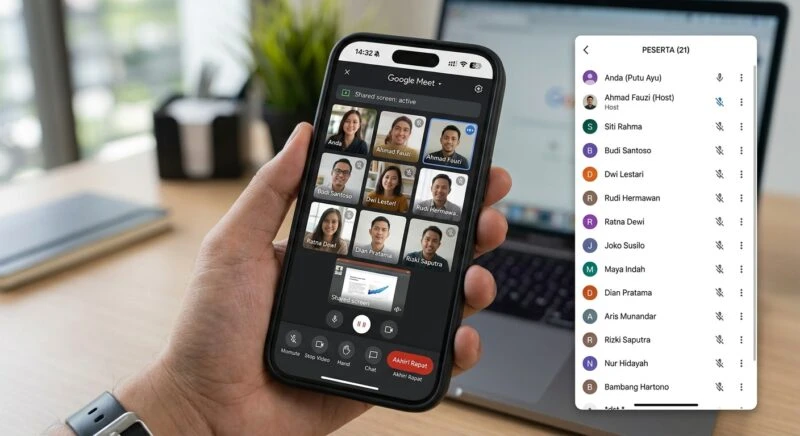
Since Google services are interconnected, changing your name on Google Meet will also update your name across other Google platforms such as Gmail, Google Drive, and YouTube.
Here are the steps to change your name on Google Meet, broken down by the device you’re using:
1. Changing Your Name on Google Meet Using a Laptop or PC
If you’re on a laptop or desktop, you can adjust your name right from a web browser:
- Open a web browser (such as Google Chrome) and click your Google account profile picture in the top right corner.
- Select the “Manage your Google Account” button.
- Click on the “Personal Info” menu in the left navigation panel.
- Tap on the “Name” section.
- Enter your desired first name (First Name) and last name (Last Name) (for example: First Name: John, Last Name: Doe).
- Click the “Save” button.
2. Changing Your Name on Google Meet Using an Android Phone
Android smartphone users can update their Meet profile name easily via the phone’s system settings:
- Open the “Settings” menu on your Android device.
- Scroll down and select the Google menu.
- Make sure the logged‑in account is correct, then tap “Manage your Google Account”.
- Go to the “Personal info” tab and select the “Name” option.
- Edit the first and last name to match the required format.
- Tap the “Save” button to confirm the change.
3. Changing Your Name on Google Meet Using an iPhone or iOS Device
iOS device users can modify their name through either the Google Chrome app or the Google app:
- Open the Google Chrome app or the Google app on your iPhone and make sure you are signed in to the desired account.
- Tap the profile picture icon at the top right corner and choose “Manage your Google Account”.
- Select the “Personal Info” tab and tap “Name”.
- Enter your new first name and last name in the respective fields.
- Click “Save”.
Tips for Updating Your Display Name on Google Meet
To ensure a smooth name‑change process without technical hiccups, keep the following points in mind:
- Scheduled Updates
- Google may pause briefly before showing your new name completely in the meeting space. It’s recommended to update your name prior to joining the session.
- Clear Name Format
- For academic or professional purposes, combine your real name with an identifier (e.g., “Alice – Marketing Lead”).
- Impact on Other Services
- Remember that this change applies globally, so your display name will also update in Gmail and YouTube accounts.
Frequently Asked Questions
Can I change my name in Google Meet while a meeting is in progress?
You cannot edit your name directly within the meeting view. First, go to the Google Account Settings menu, then refresh your Google Meet page.
Why doesn’t my name change immediately after updating it on Google Meet?
There is usually a brief synchronization delay of a few seconds to a minute. You can try leaving the meeting temporarily and rejoining the link.
Is there a limit to how often I can change my name on Google Meet?
Google lets users update their profile name at any time, but excessive changes in a short period may trigger a temporary security‑based restriction.
It’s really simple and convenient, right? By following the steps above, you can quickly adjust your profile to suit school, college, or professional requirements.
Looking for work‑from‑home productivity tips, Google app tricks, and reliable tech tutorials? Don’t forget to keep your knowledge up‑to‑date only at TheCuy Tekno!
Join TheCuy across all platforms
Get the latest updates on any device.
View 2 authors


terimakasih sudah mengunjungi thecuy. 🙂

Penulis Berpengalaman 5 tahun.