
Struggling with sending large files? Come on, learn how to create an easy, practical, and secure Google Drive link for both public and private sharing!
Knowing how to create a Google Drive link is a fundamental digital skill that’s very handy, especially if you often share assignment documents, high‑resolution photos, or distribute work files.

As Google’s trusted cloud storage service, this platform lets you upload, sync, and share files across multiple devices conveniently, whether you’re using a mobile phone, PC, or laptop.
You no longer have to worry about your phone’s storage being full from sending huge attachments via chat or email. Just copy the link and send it to the recipient, and the data transfer will proceed smoothly.

So, how do you create a Google Drive link so that a file can be accessed only by specific people or made publicly available? Come on, check out the practical steps below!
How to Create a Google Drive Link
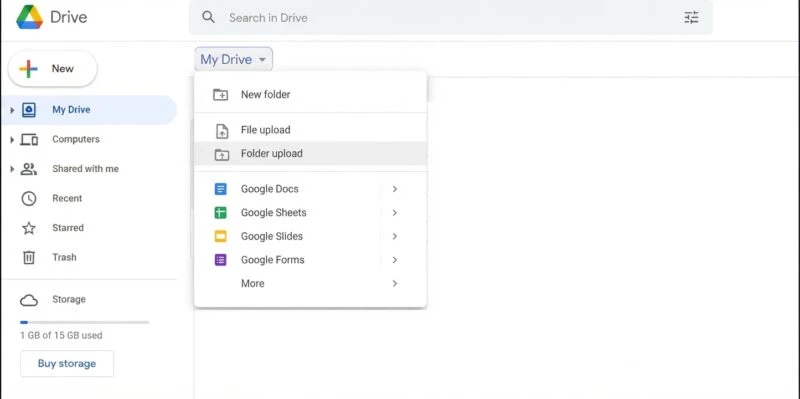
1. For Specific People (Private Access)
If the document you store is confidential or personal (such as financial reports or personal identification data), creating a Google Drive link using this method is highly recommended. Only a registered email address can access the link.
- Log in (login) to your Google Drive account via the mobile app or a browser on your PC.
- Find or upload (upload) the file or folder you want to share.
- Tap or click the three‑dot icon located next to or at the top corner of the file.
- Select the Share option.
- In the Add people and groups field, type the email address of the person you want to grant access to.
- Set the Google Drive access role for that person (whether they are allowed to View, Comment, or Edit).
- Click the Send button. The recipient will automatically receive an email notification containing a direct link to the document.
2. How to Make a Google Drive Link Public
What if you want to share study materials, a reunion photo gallery, or a design template with dozens of people at once without having to write down their email addresses one by one? You need to set your Google Drive link to public.
- Open Google Drive again and locate the file you want to distribute.
- Click the three‑dot icon on the file, then select the Share option.
- Look at the bottom of the General Access menu box. Change the default setting from Restricted to Anyone with the link.
- In the right‑hand side of that option, set the user permissions (Role):
- Viewer: Others can only read and download the file.
- Commenter: Others can view and leave comments.
- Editor: Others have full rights to modify, delete, or add content to the document. (Choose this option with great care).
- Click the Copy Link button located at the bottom left of the settings window.
- Press the Done button. Now, the method of sharing a Google Drive link is complete, and you can freely paste it into WhatsApp groups, Telegram, social media, or a website.
FAQ
Does a shared Google Drive link have an expiration date?
For personal Google accounts (standard free version), shared links do not expire or become invalid automatically. The link will only stop working if you manually change the setting back to Restricted or permanently delete the file.
Why do others still get an access denial even though the link has been shared?
This usually happens because you forgot to change the ‘General Access’ setting. If the file status is still Restricted, anyone clicking the link will be blocked and see a ‘Need Access’ page, forcing them to send an email request for approval.
What is the maximum file size that can be shared via a link?
As long as your Google Drive storage quota is sufficient (Google provides 15 GB free per account), you can share files of any size, including raw video files measured in Gigabytes.
It’s very practical and saves memory space, right? By practicing how to create a Google Drive link according to the privacy level needed, your digital data distribution is guaranteed to be much neater, centralized, efficient, and, of course, secure.
Want to learn more about tutorials for optimizing cloud storage services, daily digital productivity tips, and other trusted tech updates? Come on, keep an eye on the latest articles only at TheCuy Tekno!
What type of file do you most often share using Google Drive these days?
Follow TheCuy on all platforms
Remain up to date wherever you browse.
Thanks for visiting thecuy. 🙂
