
Maintaining privacy of sensitive data on smartphone has now become extremely important. Understanding how to hide apps on a Samsung phone is the best step so that apps like mobile banking, social media, or personal galleries are not easily peeked at by others when borrowing your phone.
Samsung phone users are fortunate because the One UI interface already provides a built-in feature that allows apps to be hidden without having to delete them (uninstall). In addition, there is also a secret encrypted space feature for extra protection.

This article will discuss a complete guide on how to hide apps on a Samsung phone safely, easily, and practically.
4 Approaches to Hide Applications on Samsung Phones
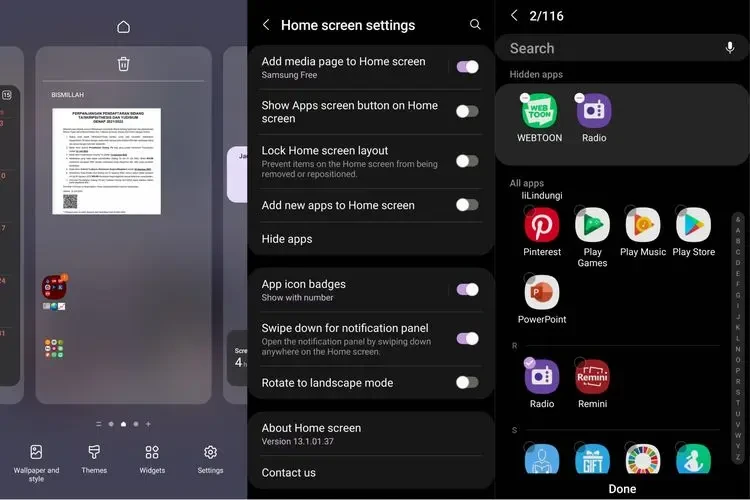
Here are several methods you can use to hide app icons on your Samsung phone:

1. Using Home Screen Settings (Home Screen)
This method is the simplest way to remove app icons from the Home Screen and App Drawer:
- Press and hold on an empty area of the main page (Home Screen), or pinch the screen with two fingers.
- Select the Settings option or Home Screen Settings in the lower right corner.
- Scroll down then tap the Hide Apps menu on the Home Screen and App Screen (Hide Apps).
- Select the apps you want to hide until a check mark appears.
- Click Done (Done / Apply) to save it.
2. Using the Secure Folder Feature (Safe Folder)
If you want extra security based on a password, PIN, or fingerprint for banking and messaging apps:
- Open Settings (Settings) > Security and Privacy.
- Select the Secure Folder menu, then log in using your Samsung Account.
- Set up a lock method (PIN, Pattern, or Biometric Sensor).
- Once inside the Secure Folder, tap the plus (+) icon or Add Apps.
- Choose the apps you want to move into this encrypted space.
3. Via the One UI System Settings Menu
You can also access the app hiding settings directly through the main system menu:
- Go to the Settings (Settings) of your Samsung phone.
- Choose an option on the Display menu.
- Tap on the Home Screen option.
- Select Hide Apps on Home Screen and App Screen, tick the target app, then click Done.
4. Using the Nova Launcher App
For those of you who use a third-party launcher to customize your phone display:
- Download and install Nova Launcher via the Google Play Store.
- Open the Nova Settings menu.
- Go to the App Drawer option, then scroll until you find the Drawer Groups section.
- Select Hide Apps, then tick the apps you want to hide from the main menu.
Frequently Asked Questions
How to hide apps on a Samsung phone without additional apps?
You can use the built-in One UI feature by holding an empty area on the Home Screen, selecting Settings, then going to the Hide Apps on Home Screen and App Screen menu.
Will hidden apps on a Samsung phone delete their data?
No. Hidden apps are not deleted (uninstalled). The system simply hides the app icons so they don’t appear on the Home Screen or App Drawer.
How does the standard Hide Apps feature differ from Secure Folder on Samsung?
The Hide Apps option only conceals icons from the main menu without a password. Meanwhile, Secure Folder creates a copy of the app in an isolated space protected by PIN, pattern, or fingerprint encryption.
How to make a previously hidden app visible again on a Samsung phone?
You can find it via the Finder search bar (Samsung Search), open it from the Settings > Apps menu, or uncheck the app from the Hide Apps list.
Using Samsung’s built-in security features makes your personal data privacy much more protected from others. By applying the methods of hiding apps on a Samsung phone above, you no longer need to worry when lending your phone to friends or family.
For those of you who want the latest gadget tips and tricks, One UI guides, and the latest technology developments, don’t hesitate to keep reading other interesting articles at TheCuy Tekno!
Lanjut Baca:
Follow TheCuy Everywhere
Stay up to date no matter where you browse.
terimakasih sudah mengunjungi thecuy. 🙂
