
Looking to protect sensitive app privacy on your smartphone from unauthorized eyes? Learning how to hide apps on an Android device is a key step to secure personal data from malicious actors.
The built‑in app‑hiding feature is incredibly handy for safeguarding critical apps, including banking (mobile banking), social media, and personal photo galleries.
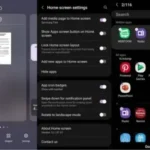
This way, you can feel more at ease when lending your phone to friends or family without fearing that important data might be peeked at.
To use this native security feature, make sure your device runs Android 15 or a newer version.

This article offers a complete guide on how to hide apps on an Android phone simply, safely, and without using extra apps.

How to Set Up a Private Space on Android
Before you start securing apps, you need to enable and configure the Private Space (Private Space) feature first.
- Open the Settings menu on your Android phone.
- Select the Security & privacy option.
- Scroll to the Privacy section and tap Private Space (Note: On Samsung phones, this feature is called Secure Folder).
- Use a fingerprint scan or enter a screen lock to continue. If you don’t have one yet, follow the prompts to create a new lock.
- Tap Set up > OK. You can choose to log in to an additional Google Account (optional) and set a custom PIN/pattern for this area.
- Click Done to activate the system.
How to Hide Apps on an Android Phone
Once Private Space is active, you can hide apps using the following two practical methods:
Move Apps from the Main Menu
- Open the All Apps (App Drawer) page.
- Touch and hold the icon of the sensitive app you want to hide.
- Select the Install app in Private Space option.
- Follow the on‑screen instructions until the transfer process is complete.
Install Directly from Private Space
- Open the prepared Private Space menu.
- Tap the Install app option.
- Download new apps directly through a separate Google Play Store inside that secure area.
Google Security Recommendation: Use a separate Google Account inside Private Space. Using the primary Google Account may cause some data (such as search history or photos) to remain accessible outside the private area.
That’s the guide on how to hide apps on an Android phone using the latest built‑in security feature. You no longer need to worry about sensitive data being peeked at by others.
If you want to learn more tech tips, phone tutorials, and the latest gadget news, don’t hesitate to keep reading other interesting articles at TheCuy Tekno!
Frequently Asked Questions
How can you hide apps on an Android phone without using additional apps?
You can use the native Android 15 feature called Private Space or Secure Folder on Samsung devices via Settings > Security & privacy.
Which Android OS versions support the built‑in Private Space feature?
Google’s built‑in Private Space feature is officially available for devices running Android 15 or newer.
Why is it recommended to use a separate Google Account in Private Space?
Using a separate Google Account ensures that personal data, app history, and media sync do not leak or connect with your device’s primary profile.
Do hidden apps in Private Space still appear in the main menu list?
No. Apps placed in Private Space are hidden from the main app list and can only be accessed after you enter a specific PIN, pattern, or fingerprint.
Follow TheCuy — everywhere
Stay updated wherever you scroll.
