
Learn how to unlock a forgotten phone pattern without visiting a repair shop right here! Check for more details.
A wave of panic hits instantly when the phone screen refuses to unlock after repeatedly entering the wrong pattern or password.
Essential tasks like replying to work messages on WhatsApp, checking bank balances in mobile banking, or even calling family become instantly impossible.
Although it sounds alarming, there’s no need to rush to spend money on a service visit.
Modern smartphone operating systems—Android and iOS alike—already come equipped with official “backdoor” routes that legitimate owners can use to regain locked access.
Which method is most effective without erasing data, and when should a full reset be performed? The TheCuy Tekno team has compiled 8 practical ways to unlock a forgotten phone pattern that you can try at home. Let’s take a look at the guide!
How to Unlock a Forgotten Phone Pattern on Android & iPhone
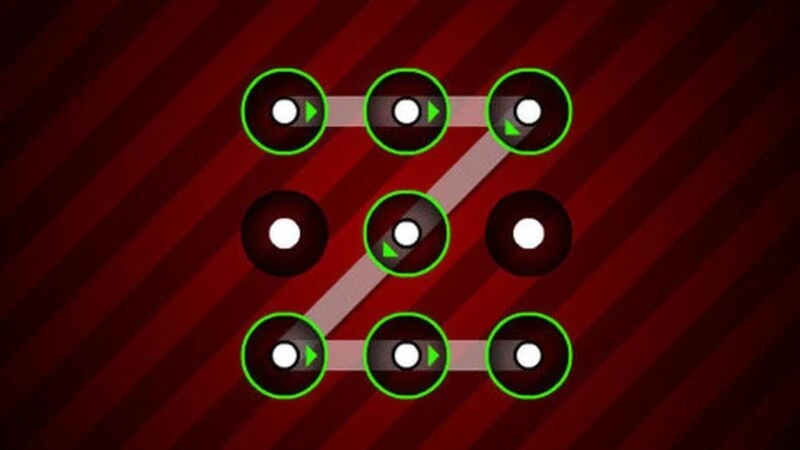
1. Use the Forgot Pattern Feature – For Older Android Devices
For users of older Android smartphones (Android 4.4 KitKat and earlier), this feature is the main lifesaver.
- Wait until a 30‑second countdown appears on the screen, then tap the Forgot Pattern text in the lower corner.
- The system will ask you to log in. Enter the Gmail address and password of the Google account linked to the device.
- After successful login, the screen will guide you to create a new screen pattern or password.
2. Use Find My Device (Google)
This is a very effective method for unlocking a forgotten pattern on modern Android devices, provided your phone is connected to the internet and GPS is enabled.
- Open a browser on a laptop or a borrowed phone, then visit the site:
[google.com/android/find](https://google.com/android/find). - Log in with the same Google (Gmail) account associated with the locked phone.
- Select your phone’s icon in the upper left corner.
- Choose the Secure Device/Lock option.
- The screen will ask you to create a new temporary numeric PIN.
- Enter this temporary PIN on your locked phone. After it unlocks, go to Settings immediately to turn off the PIN and replace it with standard security.
3. Use Find My Mobile (Samsung Only)
For Samsung Galaxy users, unlocking a forgotten pattern is much easier thanks to Samsung’s exclusive ecosystem (provided you have already created a Samsung Account).
- Visit
smartthingsfind.samsung.comon a laptop or tablet. - Log in with your Samsung Account credentials.
- In the right panel of the screen, click the Unlock option.
- The system will verify your Samsung Account password again.
- Click Unlock, and miraculously your Samsung screen will open, with all screen lock settings (PIN/Pattern/Fingerprint) automatically erased from the system.
4. Bypass via iForgot (iPhone Users Only)
iOS is known for its strict security. If you enter the Passcode incorrectly too many times, the iPhone will be disabled. In that case, the way to unlock a forgotten pattern on an Apple device is through a cloud reset.
- Visit
iforgot.apple.comon a laptop or other device. - Enter your Apple ID (email) and complete the captcha challenge.
- Follow the phone number verification flow and click Continue.
- Through this route, you can recover access to your Apple account to subsequently perform an Erase iPhone or restore the device via iCloud backup. (Note: Apple’s process is strict, and recovery may take time.)
5. Use ADB (Android Debug Bridge) on a PC
This method is for advanced users who want to unlock a forgotten pattern without losing data. The absolute requirement is that USB Debugging must have been enabled on your phone before it locked, and the phone must have previously been allowed to connect to the PC you are using.
- Connect the locked phone to a PC/Laptop using the original data cable.
- Open the Command Prompt (CMD) program on the PC.
- Type this command:
adb shell rm /data/system/gesture.keyand press Enter. - Restart your phone. When it powers on, the system will not ask for a pattern at all. Go to Settings immediately and create a new pattern.
6. Use Third‑Party Software (EaseUS MobiUnlock)
If you’re not comfortable with CMD commands, you can use professional backdoor software like EaseUS MobiUnlock.
- Download and install the EaseUS MobiUnlock program on your computer/laptop.
- Connect the locked smartphone using a USB cable.
- Open the application and select the Bypass Lock Screen (Remove Lock Screen) menu.
- Select your phone’s brand and model, then follow the app’s instructions to put the phone into Download Mode.
- Click Start and let the application automatically download the password‑cracking firmware.
7. Emergency Call Bug Trick
This trick exploits a security flaw (bug) that only works on older Android OS (version 5.0 Lollipop). Modern Android OS has patched this vulnerability.
- On the lock screen, tap the Emergency Call button.
- Type 10 asterisks (**).
- Select (highlight) those asterisks, copy them, and repeatedly paste them into the same field until the screen can no longer accommodate them and the UI system crashes.
- When the screen crashes, quickly drag the camera panel and pull down the settings menu. Suddenly you’ll be redirected to the main home screen.
8. Perform a Factory Reset (Return to Factory Settings)
This is the ultimate and last resort among all methods to unlock a forgotten phone pattern.
- Make sure the phone is completely turned off.
- Press and hold the Volume Up + Power buttons together until the brand logo appears (some brands use Volume Down instead).
- You will enter the black screen Recovery Mode menu.
- Use the volume buttons to scroll up and down, then select the Wipe Data / Factory Reset menu. Press the Power button to confirm/execute.
- Confirm your choice, wait for the wiping process to complete, then select Reboot System Now. The phone will power on as if it were brand new out of the box (without a password).
FAQ
Will performing a forgotten pattern unlock using Factory Reset delete the SD card’s memory?
No. The Wipe Data/Factory Reset process from the Recovery menu only removes and resets the internal storage. Files on external memory (MicroSD) and SIM Card remain safe and untouched.
After a Factory Reset, my phone still prompts for the old Google account; what should I do?
This is known as FRP (Factory Reset Protection) security feature. Android prevents thieves from forcefully resetting phones. If you are the legitimate owner but have forgotten the Gmail password, the only solution is to bring the phone to an official Service Center with the original box or purchase receipt.
What is the best way to avoid forgetting the screen pattern later on?
The best preventive step is to never use an overly complex pattern. Immediately register a secondary biometric lock such as a fingerprint scanner (Fingerprint) or facial recognition (Face Unlock), and always keep Find My Device/Samsung/iCloud features enabled in the background.
There are quite a few emergency loopholes you can exploit according to the situation and condition of your device, right? Understanding how to unlock a forgotten phone pattern is an essential skill that will save you from critical situations when communication access is most needed.
Want to keep updating your knowledge about smartphone troubleshooting tricks, solutions for recovering lost data, and the latest tech information? Come on, don’t forget to always monitor the latest gadget education articles only at TheCuy Tekno!
Don’t miss the next TheCuy story
Follow once — updates come where you normally scroll.

Penulis Berpengalaman 5 tahun.