
Feeling shocked at your App Store bill soaring? No worries, let’s learn how to request a refund on Apple for apps and subscriptions below!

Did you ever feel a shock when you saw your credit card bill or e‑wallet balance suddenly drained because of a transaction from the Apple ecosystem?
Issues like unnoticed automatic subscription bills or accidentally hitting the buy button (in‑app purchase) while playing a game on your device are classic problems often faced by iPhone and iPad users.
If you’re going through this panic, take a deep breath. Apple actually has a very solid consumer protection policy and provides an official channel to request a refund.
Unfortunately, many novice users don’t yet know the correct way to request a refund on Apple in order to get their application approved quickly.
That’s why the TheCuy Tekno team has compiled a comprehensive guide on how to request a refund on Apple. You can easily practice this guide via a browser on any device (iPhone, Mac, or Windows PC). Come on, check out the steps!
Reasons You Need to Know How to Refund on Apple
Before getting into the technical execution, you need to understand what situations make applying for a refund on Apple valid and highly likely to be approved by the developer. Here are some common scenarios:
- Free Trial Subscription Trap (Complimentary Trial)
- You download an app with a 3‑day free trial label but forget to cancel it before the trial period ends, causing the system to automatically charge your balance for the next month’s subscription.
- Unintentional Purchase (Accidental Purchase)
- Your child or family member accidentally presses the buy button (in‑app purchase) while playing a game on your device.
- Application Not Meeting Expectations
- You purchase a paid app, but its features are buggy, cannot be opened, or its description doesn’t match reality.
- Mysterious Bill
- A transaction history appears that you don’t recognize or remember at all.
5 Ways to Refund on Apple via “Report a Problem”
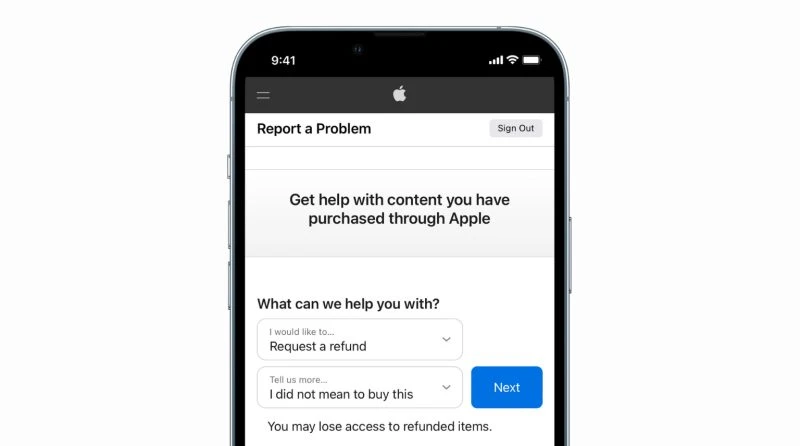
Below is the main guide on how to request a refund on Apple that you can do independently. This step targets Apple’s official help center.
- Open a browser app (Safari/Chrome), then type and visit the address reportaproblem.apple.com. Log in using the Apple ID (Apple Account) that is directly linked to the transaction.
- After successfully logging in, you will see a dropdown box with the text “I’d like to”. Tap the box and select the option “Request a refund”. This is the main gateway to the Apple refund process.
- In the next column, the system will ask you to explain the reason for your request. Choose the most honest and relevant reason for your situation (for example: “I accidentally bought this” or “I didn’t want this subscription”). Then click the Next button.
- The screen will display your latest transaction history. Check the specific app, game, or subscription bill that you want to withdraw the funds from. After you’re sure, click the Submit button.
- Applying for a refund on Apple won’t immediately return your money instantly. Apple needs about 24 to 48 hours to review the eligibility of your request. If approved, the funds will be automatically returned to the original payment method (credit card, Dana, GoPay, or ShopeePay).
Tips If the Bill Doesn’t Appear on the Report Page
Sometimes, when practicing how to refund on Apple, you may be confused because the item you want to refund doesn’t appear in the list. If this happens, take the following mitigation steps:
- Open the email inbox connected to your Apple ID. Type the keyword “Invoice from Apple” or “Receipt from Apple”. Make sure the order number matches.
- Many users have more than one Apple ID. Make sure you are logged in using the account that actually made the transaction.
- If the transaction just happened a few minutes ago, its status in the banking system may still be Pending. You cannot execute the Apple refund process if the bill hasn’t reached the “Completed” (Processed) status. Wait a few hours until it appears in the list.
Don’t Forget to Cancel the Subscription!
Remember, a refund does not automatically stop your subscription status for the next month. To avoid another auto‑renewal, take these preventive steps:
- Open the Settings menu on your iPhone.
- Tap the Profile/Your Name (Apple ID) banner at the very top.
- Select the Subscriptions menu.
- Find the app that drains your funds, then tap the Cancel Subscription option.
FAQ
What is the maximum time limit to request a refund on Apple?
Although Apple does not explicitly state the deadline, the chance of your money being returned is very high if you request a refund within a maximum of 14 days (2 weeks) from the purchase date. If it’s been months, the request will be automatically rejected.
Is there a guarantee that you’ll get 100% of your money back if you request a refund?
There is no definite guarantee. The final decision is absolutely in the hands of Apple’s review team. However, if your reason is logical, not a pattern of fraud (frequent refunds), and the item hasn’t been used extensively, your request will almost certainly be approved.
How do I check the status of my Apple refund request?
You can return to the reportaproblem.apple.com website, log in, then select the Check Status of Claims menu. There you will see whether the status is still under review, approved, or rejected.
Very concise and easy to understand, right? By understanding how to refund on Apple in detail, you won’t need to feel anxious when an accidental transaction occurs in the iOS ecosystem. Always be careful before pressing the verification button (Face ID/Touch ID) when downloading any app.
Want to keep updating your knowledge about digital transaction security tips, smartphone secret tricks, and various other trusted technology information? Come on, don’t forget to always monitor the latest gadget education article developments only at TheCuy Tekno!
Follow TheCuy – wherever you are
Stay up-to-date wherever you read.
terimakasih sudah mengunjungi thecuy. 🙂

Penulis Berpengalaman 5 tahun.