
Ubah ponselmu yang berisik menjadi area yang tenang dan mendukung produktivitas. Pelajari langkah-langkah mengatur notifikasi Android dengan tepat tanpa harus mematikan koneksi sepenuhnya.

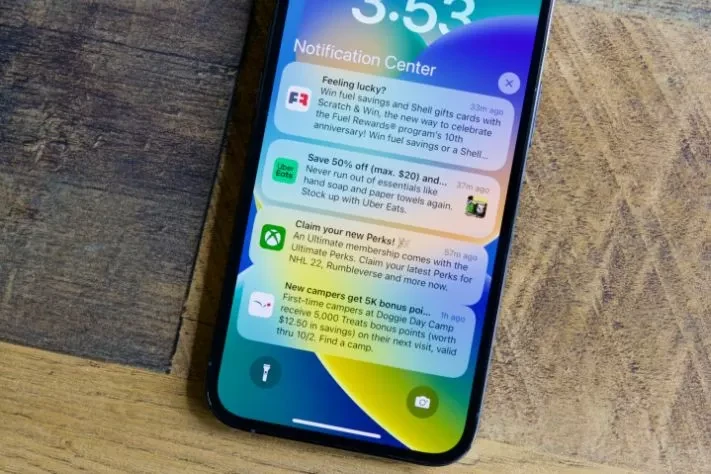
Smartphones running Android were designed to make life easier, but a nonstop stream Raphaël
From endless group chats on WhatsApp, game alerts during crucial meetings, to e-commerce promotional pop-ups ringing at midnight.
Do not let your smartphone control your daily routine! You actually have full control to filter which information deserves to appear on your main screen.
With a few tweaks in the settings menu, you can transform a noisy phone into a quiet productivity tool.
Want to know the technical tricks? Let’s apply this comprehensive guide on how to adjust Android notifications from the TheCuy Tekno team below!
How to Adjust Android Notifications
1. Recognize Notification Channels (Notification Channels)
Before proceeding to the execution of how to adjust Android notifications, you need to know that Android does not treat all notifications equally. The system uses a feature called Notification Channels.
For example, in e-commerce apps, notifications are divided into specific channels such as: “Incoming Messages”, “Promotions & Discounts”, and “Delivery Status”.
2. Basic Steps to Adjust Android Notifications
This is the most basic method to control the flow of pop-ups from all installed applications on your smartphone:
- Open the Settings menu on your Android phone.
- Find and select the Apps & Notifications menu (on some phone brands, it may be called Application Management or Notifications).
- Tap the See all apps option.
- Select an application that feels the most spammy (e.g., a game app or social media).
- Tap the Notifications menu.
- Here you can turn off the main toggle (switch) to completely block notifications from that app, or scroll down to disable specific channels only.
3. Enable Do Not Disturb Mode & Digital Wellbeing
If you need complete silence for an extended period (such as during sleep or deep work), manually adjusting notifications one by one can be exhausting. The solution is to use automatic modes:
- Do Not Disturb Mode (DND)
- Swipe the screen from top to bottom to open the Quick Settings panel, then activate the Do Not Disturb icon. This feature will mute all pop-ups, vibrations, and ringtones instantly. Interestingly, you can set exceptions, such as calls from VIP contacts (boss or immediate family) will still ring through Do Not Disturb mode.
- Focus Mode
- It is located in the Digital Wellbeing menu. This feature does not just mute notifications, but will lock/block distracting applications (such as TikTok or Instagram) during work hours, so you cannot open them before your work hours are over.
4. Advanced Tips: Silent Notifications & Lock Screen Privacy
To refine your notification management, try applying the following advanced tricks for adjusting Android notifications:
- Silent Notifications
- If there is an unimportant group message but you don’t want to leave the group, change the notification nature to silent. When a pop-up appears, press and hold the notification, then select the Silent option. The notification will still appear in the top panel, but will not trigger any sound or vibration.
- Hide Privacy on Lock Screen
- To prevent secret WhatsApp messages from being read by others when your phone is lying on the table, go to Settings > Privacy > Lock Screen Notifications. Select the “Hide sensitive content” option. The phone will still make a sound, but the text content will be hidden until you unlock the screen (Face Unlock/Fingerprint).
- Bubbles Messages
- Similar to Chat Heads in Messenger, you can activate the floating bubble feature for priority contacts, allowing you to reply to messages while continuing to use other apps.
FAQ
Will enabling Do Not Disturb mode cause my alarm to be turned off?
No. By default (factory settings), alarms are considered an absolute exception. Even when your phone is in the strictest Do Not Disturb mode, your morning alarm will still sound loudly as usual.
How to view important notifications that were accidentally deleted (swiped away)?
On Android 11 and above, you can recover messages that were accidentally deleted by enabling the Notification History feature. Go to Settings > Notifications > Notification History, then toggle the switch. The system will record all pop-up traces for the last 24 hours.
Having applied the method to adjust Android notifications, but why do pop-up ads still frequently appear suddenly on the main screen?
If ads appear in the middle of the screen (full-screen pop-up ads) and not in the top notification bar, it is not a standard notification, but rather adware or malware from third-party apps that you have just downloaded carelessly. The solution is to immediately uninstall the suspicious app via Safe Mode.
No need to feel overwhelmed by smartphone harassment every minute! By regularly evaluating and practicing the above methods to adjust Android notifications, you have successfully created a healthy digital boundary between urgent matters and momentary distractions.
Want to keep updating your knowledge about smartphone optimization tricks, the latest gadget recommendations, and a variety of other digital technology and productivity information? Come on, don’t forget to always check the latest and most accurate educational articles only at TheCuy Tekno!
Don’t miss the next TheCuy story
Follow once — updates appear where you usually scroll.

Penulis Berpengalaman 5 tahun.