
Want to browse Instagram without others seeing you’re active? Let’s learn the easiest and fastest guide to turn off Instagram’s online status here!
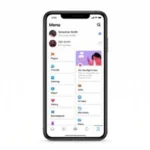

Have you ever felt uncomfortable while just relaxing and scrolling through the feed or Reels without intending to chat, only to receive a direct message from a friend because they saw a green dot on your profile?
Understanding how to turn off Instagram’s online status is the best solution for those who prioritize privacy and peace of mind on social media.
On Instagram, a green circle on the profile picture in DMs indicates that the user is currently active.
Additionally, the ‘last seen’ feature clearly shows when you were last active on the app (e.g., Active 5 minutes ago).
Fortunately, Meta gives users full control to hide these activity indicators.
Depending on the device you use, let’s thoroughly discuss how to disable Instagram’s online status below!
Cara Menonaktifkan Tanda Online Instagram

1. How to Turn Off Instagram Online Status on Android Devices
For Android smartphone users, the steps to hide your activity status from followers are very quick:
- Open the Instagram app and make sure you’re using the latest updated version.
- Go to your profile page, then tap the three horizontal line icon (Menu) in the top right corner of the screen.
- Select the Settings and Privacy menu.
- Scroll down, find and select the Messages and story replies option.
- Tap the Show activity status menu.
- Slide the toggle (switch button) until it turns gray (off).
- Done! Your green dot will no longer be visible to others in the DM list.
2. How to Turn Off Instagram Online Status on iPhone (iOS)
For Apple ecosystem users, the interface for turning off Instagram’s online status has a menu layout similar to Android:
- Open the Instagram app on your iPhone.
- Go to your profile page and tap the three-line icon in the top right corner.
- Select the Settings and Privacy menu.
- Scroll down and find the section ‘How others can interact with you’, then select Messages and story replies.
- Select the Show activity status option.
- Turn off the switch (slide to the left) to hide both your online status and last seen history from other users.
3. How to Disable Instagram Online Status via Web Browser (PC/Laptop)
If you’re working and often access Instagram via a browser (Google Chrome/Safari) on a PC or laptop, you can still follow these steps to turn off Instagram’s online status:
- Visit instagram.com and log in to your account.
- In the left-side menu panel, click the three-line icon labeled Others (More) in the bottom left corner.
- Select the Settings menu.
- Find and click on the section How others can interact with you.
- Uncheck or turn off the button for the Show activity status option.
Essential Guidelines for Managing Instagram Online Status
Instagram has one systematic rule you should understand. The policy for turning off online status works reciprocally. This means that when you successfully hide your green dot and active status, you also won’t be able to see other users’ online status and last seen. This mutual principle is promoted by Meta to ensure fair privacy for all users.
FAQ
Does turning off Instagram’s online status also hide the ‘Typing…’ indicator?
No. Even if online status and last seen are disabled, when you’re typing a reply in an open chat, the ‘Typing…’ indicator will still be visible to your conversation partner.
Why does the green dot still appear after I’ve turned off online status?
It’s typically due to the app’s cache not being refreshed with the server. Close the Instagram app completely and reopen it.
Is it possible to turn off online status for just one specific person?
Unfortunately not. The current method for disabling online status applies to all followers. If you only want to prevent a specific person from seeing your activity, using the Account Restriction feature is the most suitable alternative.
It’s very easy to turn back on whenever you want, right? Implementing how to disable Instagram’s online status is an effective digital well-being practice to maintain mental calm and avoid the pressure of instantly replying to messages.
Want to keep updating your knowledge about social media privacy tricks, the latest app feature updates, and other trusted tech information? Let’s not forget to always check for the latest digital education articles only on TheCuy Tekno!
Don’t miss TheCuy’s next story
Follow once — updates will appear where you usually scroll.

Penulis Berpengalaman 5 tahun.