
Tired of your old profile name? Let’s follow this updated guide on how to change your Facebook name on mobile and PC, guaranteed to work!
Finding out how to change your Facebook name has become quite a popular search, especially since Meta made major changes to its app interface.
Previously, you could change your name directly from the basic profile menu. Now, all identity settings have been moved and consolidated into a special dashboard called the Account Center (Accounts Center).
Facebook name changes cannot be done arbitrarily. Meta enforces strict policies regarding real name standards and imposes a waiting period (limit) of 60 days before you can change it again. Even a tiny spelling mistake will leave you stuck with that name for two whole months.

So, how do you properly change your Facebook name according to the latest app interface to avoid being rejected by the system? Come, check out the complete tutorial guide for various devices below!
Requirements Before Changing Facebook Name
Before you access the settings menu, there are several checklists (checklist) and rules from Meta that you must follow to ensure a smooth name validation process.
- 60-Day Waiting Rule
- Use Real Name
- Use No Titles/Ranks
- Not a Business Account
- Prepare Password
How to Change FB Name on Various Devices
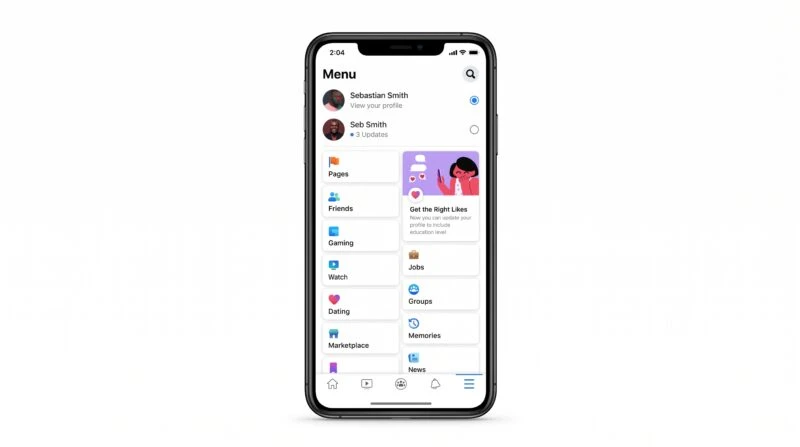
The steps below may appear slightly different visually depending on language, app version, and device type. However, the main path will always lead to the Meta Account Center menu.
1. How to Change FB Name on Android Mobile
If you’re using the latest version of the regular Facebook app on Android, follow these steps:
- Open the Facebook app and make sure you’re logged in (login).
- Tap the Menu icon (Three Horizontal Lines) at the top right corner of the screen.
- Scroll down, select Settings & privacy, then tap Settings.
- Find and tap the Account Center menu (or Meta Account). Sometimes it says “See more in Account Center”.
- Tap Profile option, then select the Facebook account you want to rename.
- Select Name menu.
- Type in the new First Name, Middle Name (optional), and Last Name.
- Tap the Review Changes button.
- The system will show a preview of the name format. Choose the arrangement you like.
- Enter your password if prompted, then tap Save Changes.
2. How to Change FB Name on iPhone (iOS)
The steps on Apple’s ecosystem are very similar to Android, only the menu button location is slightly different.
- Open the Facebook app on iPhone.
- Tap the Menu icon (Three Lines) located at the bottom right corner of the screen.
- Go to Settings & privacy > Settings.
- Tap the Account Center box.
- Go to Profile menu, select your Facebook profile, then tap Name.
- Enter the new name and tap Review Changes. Confirm using password or Face ID, then tap Save.
3. Via Mobile Browser
For those of you who are conserving memory and only access Facebook via Chrome or Safari on your phone, this method for changing your Facebook name is very reliable.
- Open facebook.com in browser and log into your account.
- Tap the Menu icon or profile picture at the right corner.
- Go to Settings & privacy > Settings.
- Navigate the screen to Account Center > Profile > Select Account > Name.
- Fill in the new name form, review, and save.
(Note: If the Account Center menu does not appear, try enabling the ‘Desktop Site’ feature in your browser settings).
4. How to Change FB Name via PC or Laptop
Managing your account on a larger computer screen is often more comfortable and less prone to errors.
- Open a browser on your laptop and visit facebook.com.
- Click your Profile Photo at the top right corner of the screen.
- Click Settings & privacy, then select Settings.
- On the left panel of the screen, find and click Account Center.
- Click Profile, select the target Facebook account, then click Name.
- Make the text changes, click Review changes, enter password, and save.
5. Facebook Lite App Users
For Facebook Lite users, the feature is now directly connected to the Account Center. Just tap the three-line menu > Settings > Account Center. If the menu appears incomplete or the page is empty (blank), make sure to update the Lite app in the Play Store first.
How to Add a Nickname (Without Changing the Main Name)
What if you only want to add a diminutive name, pen name, or maiden name without changing your original name?
- Open the Name menu in Account Center using the steps above.
- Find and click the blue text ‘Manage other names’ (Manage other names).
- Select Name Type in the dropdown menu (e.g., Facebook nickname).
- Type in the name.
- Check the box “Show at the top of profile” so your nickname appears in parentheses next to your main name.
- Click Save.
Solution If Facebook Name Is Rejected by System
Have you tried all the methods to change your Facebook name above but still get a Facebook name rejected warning?
- Make sure there are no symbols (such as @, #, *), numbers, or capital letters placed randomly in the middle of words (like aLiFa).
- Meta’s algorithm can detect names that don’t make sense (like Pangeran Kegelapan or Toko Baju Murah).
- If you have previously violated community standards related to fake identity, the system will usually ask you to upload an official ID card (KTP/SIM) photo via the recovery process to verify the name change.
Frequently Asked Questions
How long does it take for the Facebook name change process to complete?
Generally, if the name you submit doesn’t violate any standards, the change will happen instantly (right away).
Does changing the profile name automatically change the username (web URL)?
No. Changing the display name will not change the profile URL (facebook.com/usernamekamu). If you want to change the link URL to match your new name, you need to set it in the Username menu located directly below the Name menu in the Account Center.
Is it possible to bypass the 60-day waiting period if I make a typo?
Technically, no. The 60-day limit is strict. However, Meta provides one exception: if you mistype your new name, you are allowed to revert (rollback) your name to the previous version within 48 hours, though you cannot replace it with another new name.
It is very systematic and not confusing once you understand the latest menu layout, right? By following community standards and using the Facebook name change method through the Account Center above, you can refresh your digital identity right away without system rejection issues.
Want to know tricks to recover locked social media accounts, tutorials on securing privacy data from hacking, and various other trusted technology guides? Come, keep an eye on the latest article updates only on TheCuy Tekno!
Follow TheCuy Everywhere
Stay updated no matter where you browse.
Show all 2 authors


Simpan
Thank you for visiting thecuy. 🙂

Penulis Berpengalaman 5 tahun.