
Do your GPUs often overheat? Come on, follow these methods to lower GPU temperature without having to disassemble components or replace thermal paste!
Experiencing issues with the graphics card or GPU that always overheats and causes the PC to shut down on its own is certainly very concerning.
Most online guides typically recommend replacing the thermal paste on the GPU right away. However, for novice users, disassembling the GPU themselves is highly risky and can damage components and potentially void the official warranty.
The good news is, you don’t need to rush to take the device to a service center or spend a lot of money. There are many practical tricks you can do yourself at home to safely address a quickly overheating VGA.

So, how to effectively lower GPU temperature without having to disassemble it? Come on, check out the complete guide below!
How to Reduce GPU Temperature Without Disassembling Components
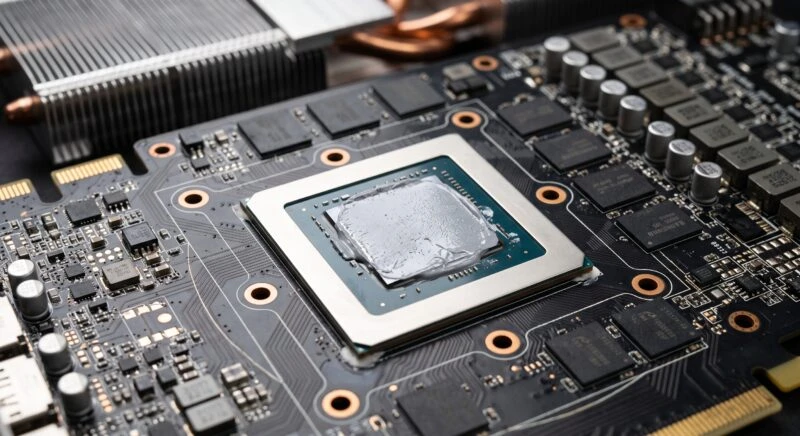
Here are the step-by-step methods to lower a hot GPU temperature without replacing thermal paste that you can directly apply to your beloved PC:
1. Lower the Room Temperature Where the PC Is Located
A hot room temperature will directly impact the operating temperature of PC components. By cooling the room using AC or circulating air through a fan and open windows, the GPU fan can absorb cooler air to passively release heat.
2. Improve Airflow Inside the Casing
Maintaining cold air circulation in the case is the main key to lower VGA temperature without disassembly.
- Organize the cables that cross (cable management).
- Install an intake fan from the front or bottom.
- Make sure there is an exhaust fan at the back and top of the case to remove heat buildup.
3. Clean the PC from Dust Buildup
Thick dust that sticks to the heatsink and fan blades works like a blanket that traps heat. Clean the inside of the PC using an air duster or compressor periodically. Make sure you hold the fan blades so they don’t spin when sprayed to avoid short circuits.
4. Minimize GPU Load on Non-Gaming Applications
The hardware acceleration feature in browsers and the use of dual monitor settings often consume GPU power unnoticed. When you want to play a heavy game, turn off the secondary monitor that is not in use and close unnecessary background applications.
5. Lower GPU Power Limit Through Driver
Manually changing voltage (undervolting) might feel complicated for beginners. As an alternative way to lower GPU temperature, you just need to lower the Power Limit through official software such as AMD Software (for Radeon) or MSI Afterburner (for NVIDIA). Lowering the power limit by around 5-10% can significantly reduce temperature without drastically reducing performance.
6. Limit Frame Rate (FPS Limiter)
Allowing the GPU to work at its maximum capacity to produce the highest possible FPS will make the cause of GPU overheating worse. Limit your game’s frame rate (for example, from 120 FPS to 60 FPS or 90 FPS) via game settings, NVIDIA Control Panel, or AMD Chill feature.
7. Lower Visual/Graphic Quality in the Game
Very heavy visual effects such as Ray-Tracing, Volumetric Fog, Anti-Aliasing, and ultra-level Texture Quality excessively strain GPU power. Lowering this setting to Medium or High greatly helps alleviate graphics card temperature.
FAQ
What is the normal temperature limit for a GPU when used for gaming?
The normal GPU temperature under full load (full load) is ideally in the range of 65°C to 85°C. If the temperature reaches above 90°C, the GPU is indicated to be overheating.
Is it safe to disassemble the GPU yourself to replace the thermal paste?
For beginners, this action is quite risky because it can damage the thermal pad, break component locks, and potentially void the official warranty from the manufacturer.
Is the MSI Afterburner application safe for beginners to use?
Safe, as long as you only change basic settings such as Power Limit and Fan Speed Curve, and do not arbitrarily increase voltage.
Very practical and safe, isn’t it? By applying the methods to lower GPU temperature above, your graphics card will not heat up quickly again, making its lifespan much longer.
Want to know tips for PC component maintenance, hardware guides, and other trusted technology tutorials? Don’t forget to keep reading interesting articles only at TheCuy Tekno!
Follow TheCuy — everywhere
Stay updated wherever you scroll.
Lihat 2 penulis


Terima kasih sudah mengunjungi thecuy. 🙂
