
Do you often find it cumbersome to take multiple screenshots? Come on, learn how to capture a long screenshot on your iPhone using the built‑in feature!


Capturing information from a website page, a long document, or a conversation thread is an unavoidable daily necessity.
Unfortunately, many Apple ecosystem users still feel confused when they need to capture a scrolling screenshot. They often end up taking dozens of separate screenshots that fill up their gallery.
Actually, if you’re using iOS 15 or later, taking a long screenshot on an iPhone is really simple because Apple has included a built‑in Full Page feature. This feature lets you capture the entire page from top to bottom in a single tap.
It doesn’t matter if you have a classic iPhone with a fingerprint sensor, a recent iPhone with a notch, or one that relies on virtual buttons—each has its own trick. Come on, put the four practical methods into practice right now!
Easy Ways to Take Long Screenshots on iPhone
1. Taking a Long Screenshot on iPhone Using Touch ID
For users of classic iPhone models that still have a physical round button at the bottom of the screen (like iPhone 8, iPhone SE Gen 2, or earlier series), taking a long screenshot is very intuitive. Follow these steps:
- Open the webpage in Safari or the text document you want to save.
- Press the Home button (Touch ID) and the Power button (Side) together quickly.
- The screen will flash and show a small preview thumbnail in the lower‑left corner. Tap the preview before it disappears.
- In the middle of the top of the editing screen, switch from the Screen tab to the Full Page tab.
- A long cursor will appear on the right side. Drag it downwards to check if the whole page is captured perfectly.
- When it looks good, tap the Done button in the upper‑left corner, then select Save PDF to File.
2. Using the Volume Buttons Combination
For users of modern devices whose screens are fully occupied without a Home button (such as iPhone X series, iPhone 11, up to the latest iPhone models), the button combination is slightly different. Here’s how to take a long screenshot on an iPhone for Face ID users:
- Open the long page you want to capture.
- Press the Volume Up button and the Side Power button together and release immediately.
- When a small preview image appears in the lower‑left corner, tap it quickly.
- Select the Full Page option located just below the pen tools row.
- Scroll using the navigation bar on the right side of the screen to review the screenshot from top to bottom.
- Tap Done to save it to the Files app folder.
3. Using the AssistiveTouch Feature
Concerned that your device’s physical buttons might wear out or break? You can use the floating menu accessibility feature (AssistiveTouch) to execute a long screenshot on your iPhone virtually without pressing any physical buttons.
- Make sure AssistiveTouch is turned on (go to Settings > Accessibility > Touch > AssistiveTouch).
- Open the webpage you want to capture.
- Tap the floating round button (AssistiveTouch) and select the Screenshot option.
- As with the previous method, tap the preview image that appears in the lower‑left corner.
- Open the Full Page tab.
- Preview the result by dragging the right cursor, then tap Done to save it securely.
4. Using Third‑Party Apps
Note: The built‑in Full Page feature usually saves screenshots as PDF documents, not regular images.
If you need JPG or PNG images for easy uploading to social media, or if you’re still on an older version of iOS, third‑party apps are the answer.
Here are two of the best free apps on the App Store you can rely on:
Tailor App
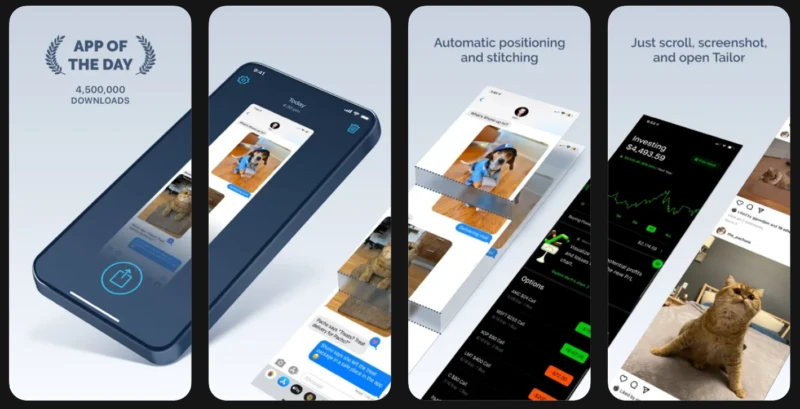
This app is very smart. You just need to take several screenshots manually (make sure there is a slight overlap between shots).
When you open Tailor, the app automatically detects, matches, and stitches the pieces into one long screenshot without any cut lines.
Picsew App
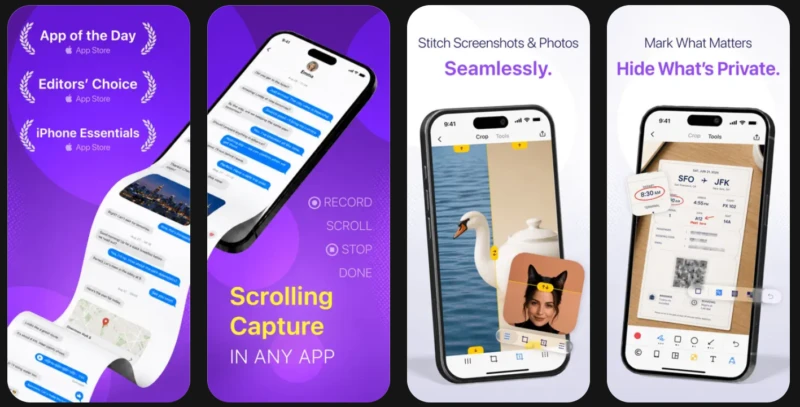
An advanced option that lets you create smooth scrolling screenshots (Scroll Capture).
Picsew’s main advantage is its built‑in editing tools for adding annotations, blurring sensitive information, and adjusting canvas layout before sharing the long image.
FAQ
Why doesn’t the ‘Full Page’ option appear on my iPhone?
The built‑in Full Page option usually appears only when you take a long screenshot in an app that supports Apple’s scrolling system, such as a browser page (Safari/Chrome), a document app, or email. If you capture the home screen or a third‑party app that doesn’t support this feature, the Full Page tab won’t show up.
Where is the built‑in Full Page screenshot saved on an iPhone?
These long screenshots aren’t saved to the Photos app. Apple stores them as PDF documents in the built‑in Files app on your device.
Is there a way to save an iPhone long screenshot directly to the gallery (Photos app)?
If you need to save it directly to the gallery as an image instead of a PDF, you must use a third‑party app such as Tailor or Picsew, as described in the fourth point above.
It’s packed with features and is actually very practical, isn’t it? By mastering the right methods for taking long screenshots on an iPhone, you no longer need to clutter your phone’s storage with dozens of separate images when documenting important articles.
Want to keep improving your knowledge of Apple ecosystem secrets, top iOS app recommendations, and other trusted tech guides? Come on, don’t forget to always check for the latest gadget articles only on TheCuy Tekno!

Penulis Berpengalaman 5 tahun.