
Feeling anxious because important memories are gone? Come on, follow the easiest and safest method to restore permanently deleted photos on your phone below!
Accidentally finding that photos are gone from the gallery is definitely a very panic‑inducing moment, especially if those pictures hold precious memories or important documents. Many users give up immediately when the image no longer appears in the main album folder.
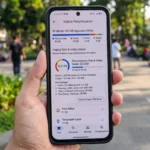
But you don’t need to worry right away! Modern smartphone operating systems have a temporary storage scheme that lets files be rescued. Even if the data is already deleted from the trash folder, there are still special tricks you can perform.
So, how can you safely restore permanently deleted photos on your phone without harming the system? Come on, check out the complete tutorial guide below!

Common Causes of Photo Loss from Phone Gallery
Before proceeding to the recovery stage, first recognize the main factors that cause photos on your phone to be deleted or suddenly disappear:
- Factor Human Error
- Accidentally pressing the delete button while selecting images or clearing memory.
- Factory Reset Process (Reset)
- Restoring the phone to its initial settings without first backing up (backup) the data.
- Virus/Malware Attack
- System corruption caused by a virus or a failed OS (update) in the middle of the process.
- Damaged Memory Card (Corrupt)
- Physical or system damage to the SD card (MicroSD) that makes media files unreadable.
- Active Cloud Synchronization
- Removing a photo from Google Photos which automatically also deletes the physical file in the phone gallery.
Ways to Restore Permanently Deleted Phone Photos
If you don’t want to download extra apps, try recovering deleted photos on Android using the built‑in system features below:
1. Check the Trash Folder
Almost all modern Android phones have a “trash bin” that holds deleted photos for 30 days before they are permanently destroyed.
- Open your phone’s default Gallery app.
- Go to the Album tab, then scroll to the very bottom.
- Find the Trash folder (or Recently Deleted folder).
- Select the photo you want to rescue, then tap the Restore button.
2. Check the Trash in Google Photos
If your phone is connected to the Google ecosystem, the chances of rescuing photos are very high.
- Open the Google Photos app.
- Tap the Gallery (Library) menu in the bottom right corner.
- Select the Trash folder.
- Find the deleted image, mark it, then tap Restore. The photo will be returned to its main album.
3. Explore via File Manager (Cache Folder)
Sometimes, the system stores a copy or cache version of your photos in the internal storage.
- Open the file manager or File Manager app.
- Go to Internal Storage, then open the DCIM > .thumbnails folder (make sure the ‘show hidden files’ feature is active in settings).
- Also check the Pictures folder for any remaining backup files.
Top Recommendations for Photo Recovery Apps
If the above built‑in steps fail, you must use a third‑party photo recovery app. Here are the best options:
1. DiskDigger Photo Recovery

The most popular app on Android. This app can deeply scan internal and external memory to piece together fragmented image files that have been permanently deleted.
2. Dumpster

It works like a computer’s Recycle Bin. It’s highly recommended to install it as a preventive measure before you lose files in the future.
3. Dr.Fone – Data Recovery

A highly reliable premium software for restoring various types of data (photos, videos, messages) that have been deleted due to a factory reset.
4. EaseUS MobiSaver

A cross‑format data recovery tool that supports restoring lost files from various Android phone brands.
Methods to Backup Photos to Google Drive for Safety
Prevention is much better than panicking when you lose data. Understand how to back up photos to Google Drive via Google Photos so your files are safely stored forever:
- Open the Google Photos app on your phone.
- Tap your Google account profile photo in the top right corner.
- Select the Photos settings option.
- Tap the Backup menu and toggle the button to the Active position.
- Select the Google email address you want to use as cloud storage.
- Now, every new photo added to the gallery will be automatically backed up when your phone is connected to Wi-Fi.
Frequently Asked Questions
Can photos that have been deleted for more than 30 days still be recovered?
If you rely on the phone’s built‑in Recently Deleted folder, photos are permanently erased after 30 days. However, you still have a small chance of recovering them using a deep‑scan application such as DiskDigger or Dr.Fone via PC.
Does DiskDigger require Root access to function?
DiskDigger can perform a basic scan (basic scan) without root to search for low‑resolution images (from cache). However, to restore photos in their original resolution after permanent deletion, the application requires root access.
Why does the quality of photos recovered via File Manager become blurry?
Because the file you find in the .thumbnails folder is not the original photo, but only a preview or thumbnail version that has been heavily compressed in size by the system.
It’s very easy and relieving, isn’t it? By practicing the methods to restore permanently deleted phone photos above, you can rescue those precious memories that were lost. Don’t forget to start habitually performing data synchronization to prevent similar incidents from happening again.
Want to learn tricks for solving Android system problems (troubleshooting), tutorials on using cloud storage apps, and other reliable tech guides? Come on, don’t forget to always update your knowledge only at TheCuy Tekno!
Follow TheCuy — everywhere
Stay updated wherever you scroll.
terimakasih sudah mengunjungi thecuy. 🙂

Penulis Berpengalaman 5 tahun.