
Thecuy.com – If you follow many WhatsApp Channels, incoming photo files, videos, stickers, and voice messages can quickly fill up your phone’s storage. Fortunately, WhatsApp includes a Clear media files feature that makes it easier to remove files from channels. For more details, see how to clear files from WhatsApp Channels below.
Article contents

Why WhatsApp Channels Can Fill Up Your Phone’s Memory?
Following a WhatsApp Channel lets you get updates from the channels you subscribe to. The material can include not just text, but also pictures, movies, stickers, and voice recordings. These media items can be saved on your device, consuming storage space. As you join more channels and see more active posts, more files will collect over time.
Files tend to be added gradually, so you may not notice them right away. Over several weeks or months, however, a mix of pictures, videos, stickers, and voice recordings from many channels can occupy a large portion of your storage. When your phone has limited space, this can become especially problematic.

You might see alerts that your storage is nearly full or find it hard to install new applications. To avoid this, it’s a good idea to regularly review and delete media from WhatsApp Channels so unnecessary files don’t keep taking up space.
Read also: Official WhatsApp Username Feature Has Arrived, Now Chat Without Sharing Your Phone Number
How to Clear Files from WhatsApp Channels
Below are steps to clear files from WhatsApp Channels, helping to keep your storage tidy and free of unnecessary items. Follow the instructions below.
1. Use Clear Media Files
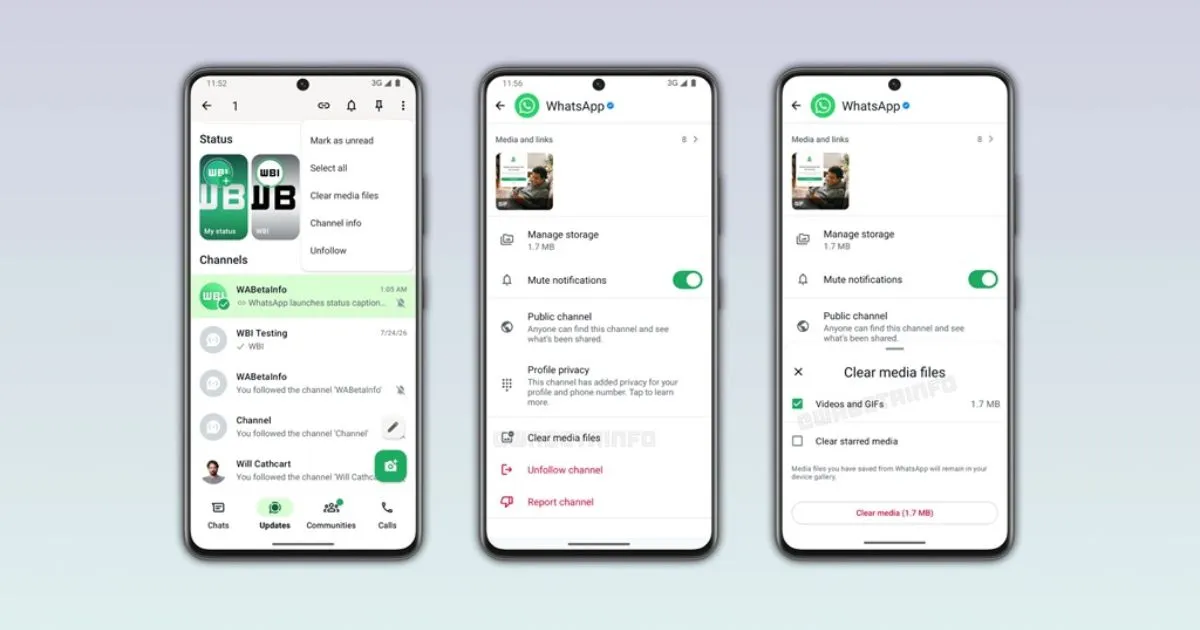
WhatsApp provides a Clear media files feature that makes it easy for you to remove media from a specific channel. Through this feature, you can review files that come from a channel before deleting them, so you don’t have to search for them one by one through your phone’s gallery.
Media can also be selected based on type, such as photos, videos, stickers, voice messages, or all available media. This way, you can delete files that are not needed without losing important media. Previously, WhatsApp Android beta version 2.26.19.4 already had an option to delete media from channels.
However, users still had to select files manually one by one. Then, in WhatsApp beta version 2.26.30.4, the process was made more practical because media could be filtered by category. This feature makes selecting and clearing files from channels faster and easier.
2. Clean Up Channel Media
To use the Clear media files feature, open the channel you want to clean up and go to the channel’s information page. In this section, there is an option to review and manage media stored on the device from that channel.
Next, you can view the available media and select the category you want to clean up. The options include photos, videos, stickers, and voice messages, so files can be deleted according to needs without having to clean up all the media from the channel.
This method can be used when you want to clean up media from a particular channel. For example, a channel often shares videos, so a lot of media is stored on the device. You can choose the media from that channel to delete without having to delete files from other channels.
3. Delete Media from Several Channels
In addition to going through the channel information page, you can also use the Clear media files feature via the Updates tab. To do this, open the Updates tab, then press and hold the channel you want to select. After that, open the additional menu via the three-dot icon and select Clear media files.
You can select more than one channel so that media from several channels can be cleaned up in one process. This way, you don’t have to open the information page of each channel one by one. This method is also helpful if you follow many channels and want to reduce storage usage more quickly.
After selecting a channel, you can determine which type of media you want to clean up. The options include photos, videos, stickers, or voice messages, so you don’t have to delete all types of files at once. For example, if there are too many videos, you can choose the video category without deleting photos or stickers that you still want to keep.
However, you can also select all media if you want to clean up storage more thoroughly. Before deleting, check again whether there are files or updates that are still needed because media that has been deleted from the device may be difficult to find again.
Read also: How to Use WhatsApp on Garmin Smartwatch and Its Top Features
4. If You Follow Many Channels Use This
The Clear media files feature will be even more useful if you follow many channels with fairly active updates. The more channels you follow, the greater the likelihood that media stored on your device will continue to grow. Through this feature, you can clean up files based on channel or media category without having to search for them one by one from the gallery.
You also don’t have to wait until the phone’s memory is full. Do periodic checks so that storage space remains available for other needs. If there is a channel that often shares videos or large files, then the media from that channel can be checked first.
Ultimately, Clear media files offers a more practical way to manage media from WhatsApp Channels. You can still follow the channels you like without letting all the media you’ve received pile up on your device. By selecting the files you still need and then cleaning the rest on a regular basis, your phone’s storage can be used more efficiently.
5. Manage Media and Storage
Channel updates that have been starred can still be retained when you perform media cleaning. This feature is useful when there is information or content that you still want to save and view again. However, WhatsApp still provides the option to delete starred updates if the content is no longer needed.
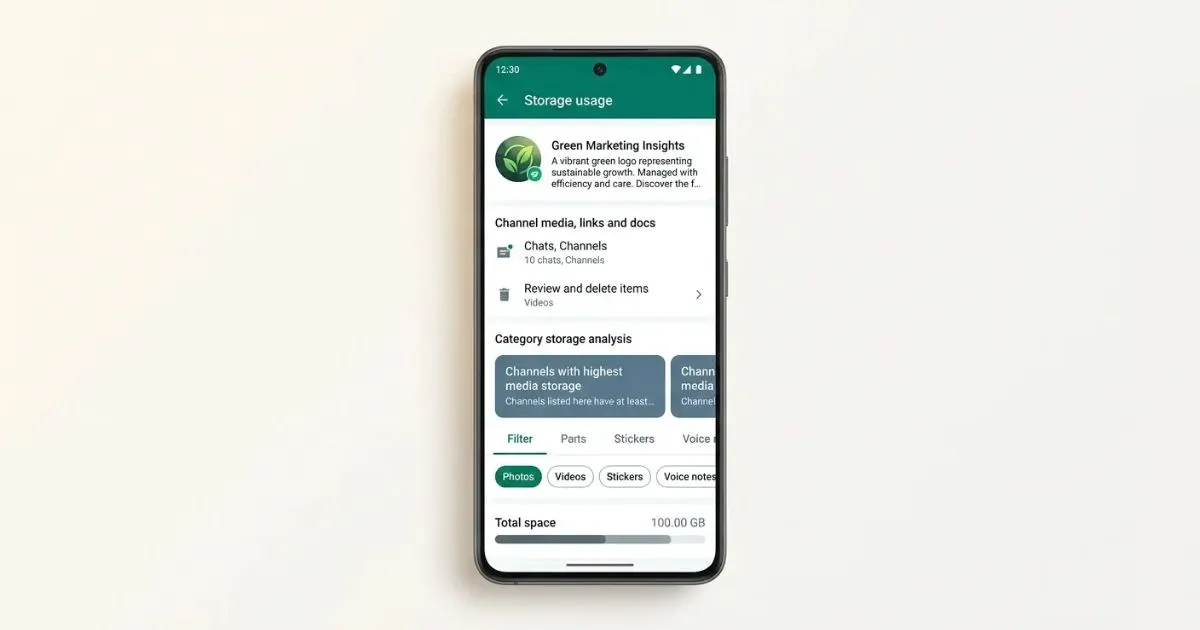
In addition, you can check WhatsApp storage usage periodically through the storage management menu. This menu displays the amount of space used and allows you to review media by chat or channel. Files can also be sorted by newest, oldest, or largest size.
From that menu, you can select a particular chat or channel and then review the media stored in it. If you find a file that is no longer needed, you can select and delete it directly. WhatsApp also provides the option to select several items at once or all items.
Pay attention also to media that has several copies because deleting one item may not immediately remove all copies from the device. By doing periodic checks, WhatsApp storage usage will be easier to control.
Read also: 12 New WhatsApp Features, Can Block Automatic Media Storage
Conclusion
Cleaning up WhatsApp Channel media regularly can be one way to keep your phone’s storage space tidy. By using Clear media files, you can select which channels and types of media to delete, so files that are still needed can be preserved. Don’t forget to check WhatsApp storage periodically so that files that are no longer needed don’t continue to accumulate on the device.
After your phone’s storage is more organized, complete your smartphone needs with the right accessories. From chargers, data cables, power banks, holders to various other phone accessories, you can find quality product choices at Thecuy.com. Come on, complete your gadget needs and find the best phone accessories at Thecuy.com!
Read also other Gadget Info at Latest Gadget Info
thank you for visiting thecuy. 🙂

Saya adalah penulis di thecuy.com, sebuah website yang berfokus membagikan tips keuangan, investasi, dan cara mengelola uang dengan bijak, khususnya untuk pemula yang ingin belajar dari nol.
Melalui thecuy.com, saya ingin membantu pembaca memahami dunia finansial tanpa ribet, dengan bahasa yang sederhana.